What Microsoft 365 license management covers, and why it never stays tidy
Microsoft 365 license management is everything that happens between buying a subscription and a person actually using Teams, Exchange or Power BI. A license has to be assigned when someone joins, changed when a role changes, removed when someone leaves, and counted at every renewal. Each step is simple in the Microsoft 365 admin center, but none of them happens once. They repeat for every joiner, project and leaver, and each waits for an administrator unless a request layer such as the au2mator Self-Service Portal starts the change for you.
Microsoft describes two ways to hand out licenses in its guide to assigning licenses on Microsoft Learn. Directly to a user, or to a group that decides by membership. A direct assignment needs a usage location on the account first, because some services are not available in every country, while group-based licensing falls back to the tenant location. Both need someone with the right role to click or script the change.
In practice the four stages drift apart. IT assigns during onboarding, team leads send changes as tickets, reclamation is forgotten until finance compares headcount and license count, and reporting is a CSV export before the renewal call. The result is seats nobody uses, direct assignments nobody remembers, and small requests that each cost an admin ten minutes. This article shows how your own scripts close that gap, and how au2mator lets the people who have the request start them.
Why license changes still fill the ticket queue
The permission model is the first reason. Assigning a license in the admin center requires at least the License Administrator or User Administrator role, as the admin center documentation on Microsoft Learn states. Both roles cover every product in the tenant, and unless you scope them with administrative units, every user as well, so a team lead who only wants a Visio Plan 2 seat for one designer cannot have them. The request becomes a ticket, and the ticket waits.
Group-based licensing solves the standard case. Put every employee in a group that carries Microsoft 365 E3, and the joiner is licensed on arrival. What it does not solve is the exception. A Power BI Pro seat for a three-month project, a Microsoft 365 Copilot add-on for one department, a downgrade from E5 to E3 after a reorganization. Each exception is a direct assignment, and direct assignments drift, because nobody removes the project license when nobody says the project ended.
The third reason is offboarding. A disabled account keeps its licenses until someone removes them. The group licensing guide also lists the errors that stop automatic assignment, from not enough licenses to conflicting service plans and a missing usage location, and each error becomes another ticket for the same admin. In au2mator the same error lands in the request log, visible to the requester.
Four ways to automate Microsoft 365 license management
Most teams combine two of the four approaches below. Group-based licensing covers the baseline, one of the other three covers exceptions, reclamation and the audit trail.
| Approach | Best for | Who triggers the change | Watch out for |
|---|---|---|---|
| Group-based licensing in Microsoft Entra ID | Baseline bundles for whole departments or the entire company | Group membership, often from a dynamic rule on HR attributes | No nested groups, exceptions still need direct assignments, errors need a human |
| Your own Graph PowerShell scripts | Exceptions, bulk changes from CSV, scheduled cleanup of disabled accounts | An administrator at the console or a schedule | The person running it needs LicenseAssignment.ReadWrite.All, every run is admin time, logging is whatever the script writes |
| Your scripts plus the au2mator Self-Service Portal | The single request from a team lead or the helpdesk, with approval and audit, on the three engines au2mator connects to | The requester in a form, a service account runs the unchanged script | You still design the script and the approval rule |
| SaaS management suites | Spend analytics across many SaaS products, inactivity reports, renewals | Policies inside the suite, changes often still by an admin | Another console and license cost, reporting first, execution second |
If you only read one row, read the third. It is the only approach where request, approval and execution are one record and nobody outside IT needs a license role. The script that does the work on PowerShell, Azure Automation or System Center Orchestrator is the same one you would run by hand today.
The PowerShell behind license assignment and removal
Every license operation in Microsoft 365 is a Microsoft Graph call, and the Microsoft Graph PowerShell software development kit (SDK) wraps them in cmdlets. Get-MgSubscribedSku lists the products in your tenant with their SKU IDs, Update-MgUser sets the usage location, and Set-MgUserLicense adds or removes licenses for one user. The Set-MgUserLicense reference on Microsoft Learn names LicenseAssignment.ReadWrite.All as the least privileged permission for the job, with User.ReadWrite.All and Directory.ReadWrite.All as broader alternatives. Reading the SKUs adds Organization.Read.All, and setting the usage location needs User.ReadWrite.All. Set-MgGroupLicense does the same for a group.
# Runs unattended on your engine, signs in as the service account or managed identity
Connect-MgGraph -Identity -NoWelcome

$user = Get-MgUser -UserId $UserPrincipalName -Property Id, UsageLocation, AccountEnabled
if (-not $user.AccountEnabled) { throw "Account is disabled, no license assigned" }
if (-not $user.UsageLocation) { Update-MgUser -UserId $user.Id -UsageLocation "AT" }

$sku = Get-MgSubscribedSku -All | Where-Object SkuPartNumber -eq $SkuPartNumber
if ($sku.PrepaidUnits.Enabled -le $sku.ConsumedUnits) { throw "No free seat for $SkuPartNumber" }

Set-MgUserLicense -UserId $user.Id -AddLicenses @(@{ SkuId = $sku.SkuId }) -RemoveLicenses @()
"Assigned $SkuPartNumber to $UserPrincipalName"
Removal is the mirror image, the SKU ID goes into -RemoveLicenses and -AddLicenses stays empty. One detail trips up most cleanup scripts. Set-MgUserLicense only removes direct assignments. A license inherited from a group stays until the user leaves the group, and Get-MgUser with the LicenseAssignmentStates property tells you which is which, as the group-based licensing examples on Microsoft Learn show. A good reclaim script checks that state first and removes the user from the group when the license is inherited.
The script above is deliberately small. Two parameters, two guards against the most common mistakes, and one line of output a request log can store. Those three properties turn a script into a service in the next section.
How au2mator puts the team lead in front of your license scripts
The missing layer in most tenants is not another script but the step where a request becomes an action without an administrator in between. au2mator is a self-service portal in front of your PowerShell, Azure Automation or System Center Orchestrator scripts. The team lead picks a service and fills in a form, an approver confirms if your policy says so, and a service account runs the script. The team lead never holds a license role, and the script never changes.
au2mator ships no license connector of its own and does not need one. It brings ready-made PowerShell scripts you can start from, or you connect the script you already have. You are not replacing your automation, you are giving it a front door with permissions, approval and a log.
What a license service looks like in au2mator
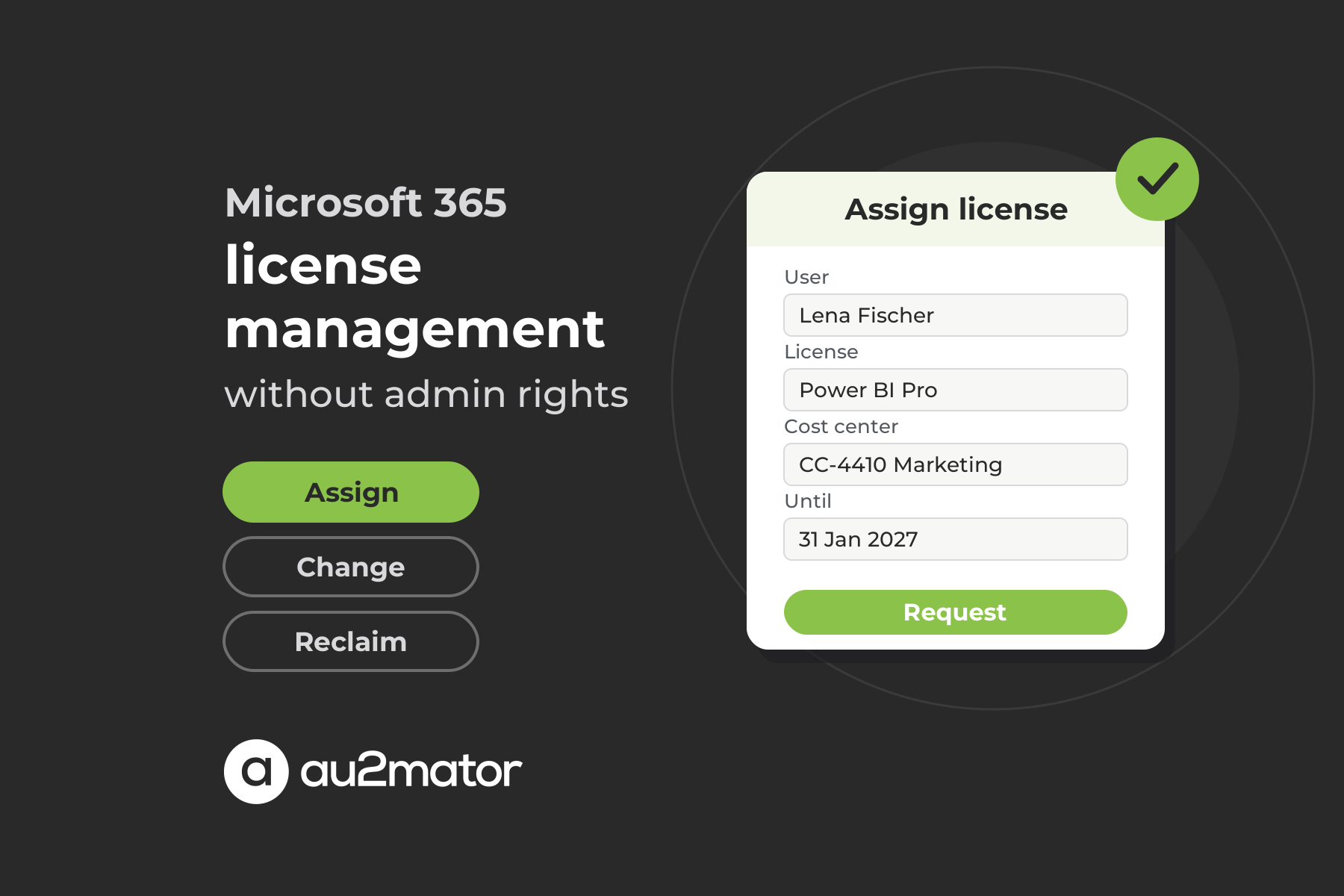
The service is your assignment script, registered in au2mator on the engine where it already runs. The form exposes only the parameters the requester should decide, typically a user lookup loaded from the directory, a dropdown with the SKUs your company allows for self-service, and an optional end date for project licenses. Permissions decide who sees the service at all, so team leads see Assign license and Remove license, the helpdesk also sees Change license. Approval is set per service. A Visio seat might need no approval, a Power BI Pro seat the cost center owner, a Copilot add-on a share of a finance approver group. For execution, au2mator starts the script through the API of your engine, and the script signs in with the service account or managed identity that holds the Graph permissions. The audit entry records who requested which license for whom, who approved it and what the script returned, and that result can be reported back to your ticketing tool. If onboarding already runs as a service, as described in our article on user provisioning automation, the license service is the natural second step on the same engine.
Reclaiming licenses at offboarding and after inactivity
Assignment gets attention because someone waits for it, reclamation gets none. The two triggers that matter are the leaver and the inactive account. For a leaver, the request that disables the account should also remove direct licenses and group memberships in the same run. Exchange Online keeps the mailbox data for 30 days after the license is removed, according to the license documentation on Microsoft Learn, so a shared mailbox conversion or a litigation hold belongs in the leaver run before the license goes, not in a ticket three weeks later.
For inactivity, a scheduled script on Azure Automation lists accounts with no sign-in for 90 days and their direct licenses. In au2mator that list becomes a request to the team lead, who confirms or rejects each seat in the portal, and the removals run under the same service account as every other change. The freed seats serve the next request the same day, and the license count follows the headcount instead of the renewal date.
FAQ: Microsoft 365 license management
Connect with the Microsoft Graph PowerShell SDK, find the SKU with Get-MgSubscribedSku, make sure the user has a usage location, and call Set-MgUserLicense with the SkuId in -AddLicenses and an empty -RemoveLicenses array. The account running the cmdlet needs LicenseAssignment.ReadWrite.All or broader. For a whole group, Set-MgGroupLicense assigns the license to the group.
Call Set-MgUserLicense with the SkuId in -RemoveLicenses and an empty -AddLicenses array. This only removes direct assignments. A license inherited from a group stays until the user is removed from that group, so check LicenseAssignmentStates on the user first. Exchange Online keeps the mailbox data for 30 days after the license is gone.
Use group-based licensing for the baseline bundle that every member of a department or the whole company gets, ideally with a dynamic group on HR attributes. Use direct assignment for exceptions such as project licenses or single add-ons. Because direct assignments drift, run exceptions through a request flow with an end date, which is what a license service in au2mator provides.
Not in the admin center. The License Administrator role covers every product in the tenant, and administrative units can narrow the users but not the products. The alternative is a self-service portal such as au2mator, where the team lead fills in a form, an approver confirms if required, and a service account runs your unchanged assignment script on PowerShell, Azure Automation or System Center Orchestrator. The team lead holds no Microsoft 365 role at all.
The three usual causes are a missing or unsupported usage location, no free seats left for the product, and a conflicting service plan, for example a user who holds Office 365 E1 directly and receives E3 through a group. Set the usage location, free or buy seats, or disable the duplicate plan. Scripts should check seats and usage location before calling Set-MgUserLicense.
Compare licensed users with their last sign-in date from Microsoft Entra ID, list accounts with no activity for 60 or 90 days, and include disabled accounts that still hold licenses. Then let the team lead confirm each seat before a script removes it. In au2mator that confirmation is a request in the portal, and the removal runs under the same service account and audit trail as every assignment.
Conclusion: Microsoft 365 license management is a request problem, not a scripting problem
Microsoft gives you the admin center, group-based licensing and the Graph PowerShell cmdlets, which cover the baseline and the bulk job. What they leave open is the single request a team lead needs today and the quiet reclamation nobody asks for. Both follow one pattern. A small script applies your rules, a service account with LicenseAssignment.ReadWrite.All runs it on PowerShell, Azure Automation or System Center Orchestrator, and a form in front lets the person who has the request start it, with an approval and an audit entry attached.
If you want to see how your license scripts could become self-service requests for team leads and the helpdesk, book a 30-minute call with Michael Seidl, Microsoft MVP and founder of au2mator, and bring the license tickets that annoy you most.