What Intune automation means in practice, and where the admin center stops
Intune automation is the practice of running Microsoft Intune device management tasks from scripts and workflows instead of from the admin center. Every button in the Intune admin center, from Sync to Retire to Wipe, is a call to the Microsoft Graph application programming interface (API) underneath. Whatever an admin can click, a script can do, and whatever a script can do, a request form in a tool such as the au2mator Self-Service Portal can trigger for someone who holds no Intune role at all.
Microsoft documents the full list of remote device actions on Microsoft Learn, from Autopilot Reset and BitLocker key rotation to Retire and Wipe. In the admin center each is a few clicks per device, in a script one line with a device ID. The difference is not the action. It is who starts it and how much privilege that person needs.
Intune already automates a lot on its own through dynamic groups, compliance policies, remediation scripts and Autopilot. What stays manual is the long tail of individual requests that a person has to decide on. Retire this device because the employee left. Push a sync because the app is missing. Rotate the BitLocker key after a support session. Those requests land in the ticket queue, and that queue is what this article automates, with your scripts and with au2mator.
Why Intune device management still fills the ticket queue
Microsoft’s answer to the queue is role-based access control (RBAC), the permission model that assigns Intune roles to groups of admins. The built-in Help Desk Operator role performs remote tasks on users and devices, custom roles can narrow that down to single remote tasks such as Sync, and scope tags and scope groups limit which devices an assignment can touch, as the RBAC documentation on Microsoft Learn explains. For the riskiest actions, Multi Admin Approval requires a second admin to approve a wipe, retire or delete before it runs.
In practice three gaps remain. Every agent with a role still works in the admin center and becomes one more Intune admin to train, review and, by default, license. The approval covers three actions and runs between admins only, so the people who actually know whether a device should go, the team lead or the asset owner, are not part of it. And the request context lives elsewhere, because the audit log records who clicked, not who asked and why. So many IT teams keep the roles in the admin team and let the helpdesk forward tickets, which brings the queue right back. A self-service layer like au2mator removes the forwarding step without handing out a single Intune role.
Four ways to automate Intune
Automation here means that a device action runs from a defined input, with the same checks and the same log entry every time. There are four ways to get there, and they are not exclusive.
| Approach | How it works | Prerequisites | Typical fit |
|---|---|---|---|
| Intune built-in features | Dynamic groups, compliance policies, filters, remediation scripts and Autopilot handle the rule-based part | Intune licensing, well-designed groups and policies | Every tenant, as the foundation for everything else |
| Your own Graph PowerShell scripts | Scripts call the Intune endpoints of Microsoft Graph to sync, retire, wipe, rename or regroup devices, on PowerShell, Azure Automation or System Center Orchestrator | Graph PowerShell skills, an app registration or managed identity with the Intune permissions, a place to run the scripts | Teams that already automate Entra ID and Active Directory with scripts |
| Your scripts plus the au2mator Self-Service Portal | The same scripts with a web form in front, so the helpdesk or a team lead requests, an owner approves if needed, and a service account runs the script on the three engines au2mator connects to | Your existing scripts, au2mator, a service account with the Intune permissions | Organizations that want the helpdesk to act on devices without holding an Intune role |
| RMM and endpoint suites | Remote monitoring and management platforms add their own agent, console and workflow engine on top of Intune | A platform project, agent rollout, licensing per device | Managed service providers and very large fleets with many non-Microsoft systems |
Most organizations in the Microsoft stack end up with the first two rows. The third row decides whether those scripts remove tickets or only shorten them, because a script that only an admin can start still needs the admin.
The PowerShell behind Intune automation
The current toolset is the Microsoft Graph PowerShell software development kit (SDK), which replaced the older Intune-specific module. You connect with Connect-MgGraph, read devices with Get-MgDeviceManagementManagedDevice, and act on them with Sync-MgDeviceManagementManagedDevice, Invoke-MgRetireDeviceManagementManagedDevice or Clear-MgDeviceManagementManagedDevice, which is the wipe. The retire cmdlet reference and the wipe API documentation on Microsoft Learn list the options, such as keeping enrollment data or user data on a wipe.
Permissions are where most scripts go wrong. Reading devices needs DeviceManagementManagedDevices.Read.All. Sync, retire, wipe, restart and the other remote actions need DeviceManagementManagedDevices.PrivilegedOperations.All, which Microsoft classifies as a high-impact permission that requires admin consent. For unattended runs on Azure Automation the clean pattern is a managed identity that holds exactly these application permissions, plus User.Read.All for the user check below, so no client secret sits in a variable. A production script validates the input, checks a guard, executes the action and writes a result. A shortened retire script for a leaver’s personal device looks like this.
param([string]$DeviceName, [string]$Reason)
Connect-MgGraph -Identity -NoWelcome

$device = Get-MgDeviceManagementManagedDevice -Filter "deviceName eq '$DeviceName'"
if (@($device).Count -ne 1) { throw "Expected exactly one device named $DeviceName" }

$user = Get-MgUser -UserId $device.UserId -Property AccountEnabled
if ($user.AccountEnabled) { throw "Primary user is still active, retire refused" }

Invoke-MgRetireDeviceManagementManagedDevice -ManagedDeviceId $device.Id
Write-Output "Retired $($device.DeviceName), reason $Reason"
The guard turns the script into a policy, because it refuses to retire a device whose user is still active. The script runs the same way whether a schedule, a CSV import or a person triggers it. The ticket queue only disappears when the person who has the request can also start it.
How au2mator lets the helpdesk run your Intune scripts without an Intune role
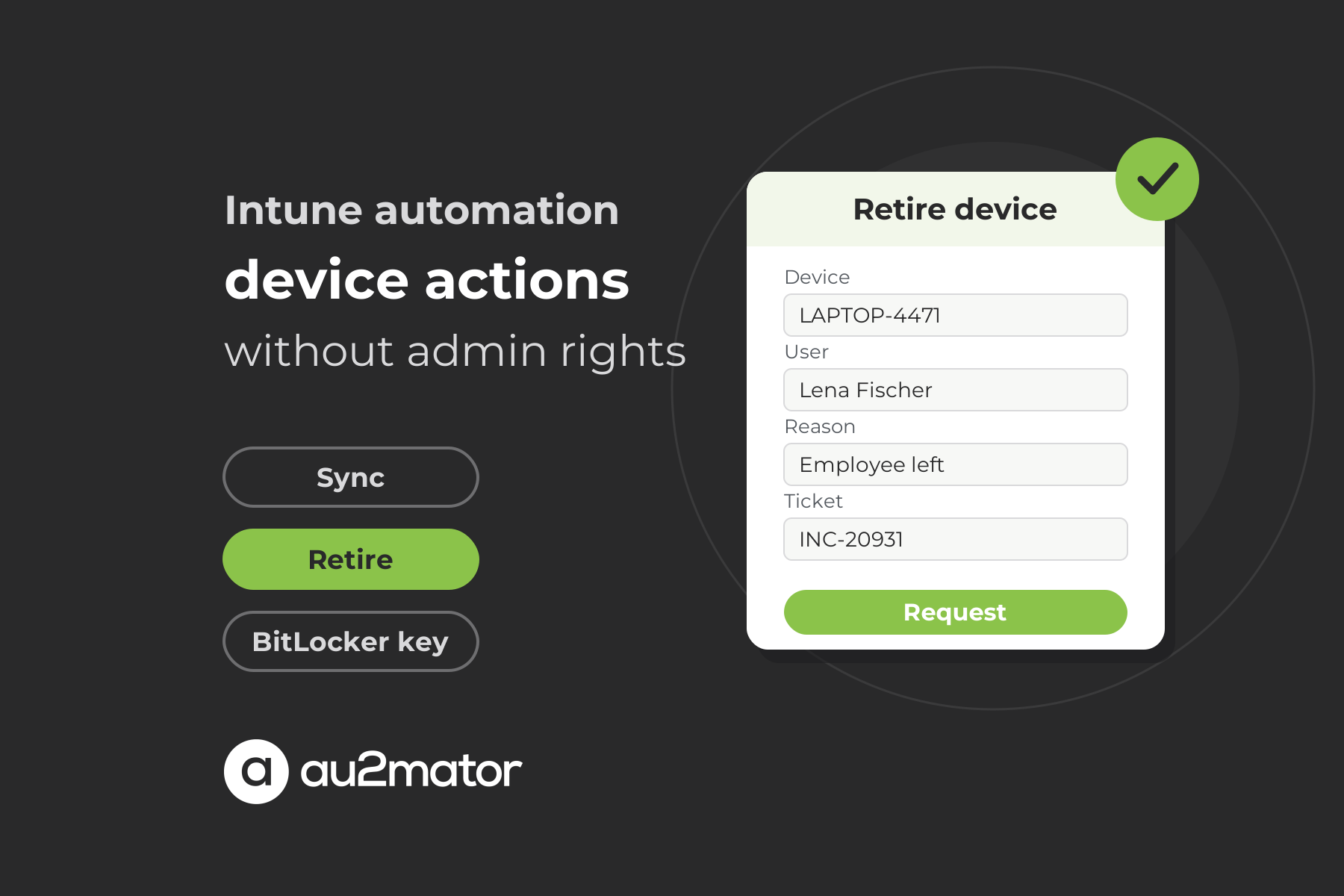
Here is the gap in most Intune automation guides. The retire script needs two values that only the helpdesk agent has in front of them, the device and the reason. The agent has no Intune role, so the values travel by ticket to an admin who pastes them into a parameter block. The script saved the clicking, not the waiting.
The au2mator Self-Service Portal closes this gap, and the design decision that matters is that it brings no engine and no Intune connector of its own, only a set of ready-made PowerShell scripts you can start from. A service in au2mator is your PowerShell script, your Azure Automation runbook or your System Center Orchestrator runbook, registered once with its parameters. Nothing in the script is rewritten. The helpdesk agent opens the portal, picks “Retire device”, fills in a form whose fields are the script parameters, and submits. If the service requires it, the asset owner approves. A service account that holds the Graph permissions executes the script, and the agent holds no Intune role at all.
What an Intune device service looks like in au2mator
The service is your existing Graph PowerShell script, or one of the ready-made PowerShell scripts that ship with au2mator, published once with its parameters. The form turns each parameter into a field. The device is a lookup against your managed devices rather than free text, the reason is a dropdown with the values your audit expects, and a wipe option is only shown on the service that is meant to wipe. Permissions decide who sees what. First-level agents see “Sync device” and “Rotate BitLocker key”, second level sees “Retire device”, and nobody sees the admin center. Approval is optional per service, for example none for a sync, the asset owner for a retire, and the asset owner group for a wipe, where you decide whether one member or a defined share of the group has to approve. For execution, au2mator starts the script through the API of your engine, and the script itself signs in with the service account or managed identity that holds the Graph permissions, so the agent’s own identity never needs PrivilegedOperations.All. The audit trail stores requester, approver, parameters, result and timestamp for every request, and the result can be reported back to your ticketing tool. “Restart device”, “Collect diagnostics” and “Add device to pilot group” are more services on the same engine.
Device lifecycle automation from enrollment to retirement
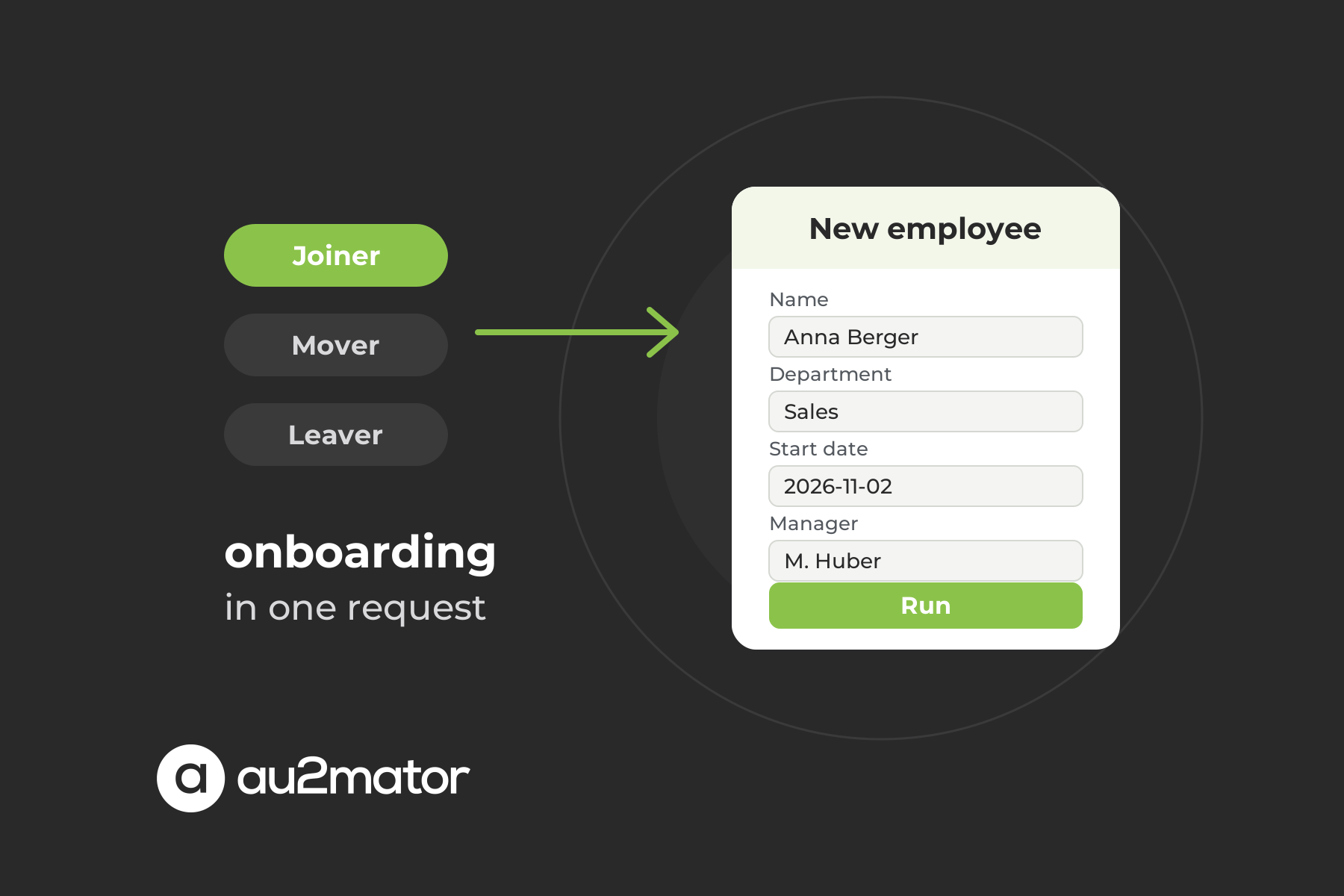
Single actions are the visible half of Intune automation. The half that decides how clean your tenant stays is the device lifecycle, from enrollment to retirement. The transitions in between are where the manual work hides, and they follow the same joiner, mover and leaver pattern we described for user accounts in our article on user provisioning automation.
A new hire gets a device in the Autopilot group and a user assignment the moment the account exists. A department change moves the device into the groups that carry the new apps and policies. A leaver’s personal device, the classic bring your own device (BYOD) case, is retired on the day the account is disabled, while a returned corporate laptop gets a wipe or Autopilot Reset before the next user. With au2mator these are services on the same engine, requested by HR, the team lead or the helpdesk and logged every time.
FAQ: Intune automation
Intune automation means running Microsoft Intune tasks from scripts, scheduled jobs or request workflows instead of clicking through the admin center. Because every admin center action is a Microsoft Graph API call, anything from syncing a device to retiring it can run from PowerShell, Azure Automation or a self-service request, with a log entry each time.
Install the Microsoft Graph PowerShell SDK, connect with Connect-MgGraph and the scopes your task needs, and use the device management cmdlets, for example Get-MgDeviceManagementManagedDevice to find a device and an action cmdlet such as Invoke-MgRetireDeviceManagementManagedDevice to act on it. For unattended runs, use an app registration or managed identity with application permissions instead of a user login.
Reading devices needs DeviceManagementManagedDevices.Read.All. Remote actions such as sync, retire, wipe, restart or remote lock need DeviceManagementManagedDevices.PrivilegedOperations.All, a high-impact permission that requires admin consent. Keep it on a dedicated service identity. In au2mator that identity runs the script, while the person who requests the action holds no Graph permission at all.
Not with Intune alone. The Help Desk Operator role or a custom role with single remote tasks still makes the agent an Intune admin in the admin center. The alternative is a self-service portal such as au2mator, where the agent fills in a form, an approval runs if your policy requires it, and a service account executes your unchanged script on PowerShell, Azure Automation or System Center Orchestrator.
Retire removes the device from Intune management and strips company data, apps and policies, while personal data stays on the device. Wipe resets the device to factory settings, with options such as keeping enrollment data or user data. Retire is the typical action for a leaver’s personal device, while wipe or Autopilot Reset prepares corporate hardware for the next user or protects a lost one.
Azure Automation is the natural home for cloud-only Intune scripts, with a managed identity for authentication and schedules for recurring jobs. A PowerShell host or System Center Orchestrator fits when the same workflow also touches on-premises Active Directory. au2mator works with all three, so the choice follows your environment.
Conclusion: Intune automation is a question of who may press the button
Microsoft Intune gives you the actions and the API, Graph PowerShell gives you the scripts, and Azure Automation gives you a place to run them. What none of them solves is the step where a request turns into an action, and that step is where tickets, overprivileged helpdesk roles and audit gaps come from. The fix is the pattern that works for every identity and device task. A script applies your rules, a service account runs it, and a form in front lets the people who have the request start it without becoming Intune administrators.
If you want to see how your current Intune scripts could become self-service requests for your helpdesk, with approval, least privilege and a full audit trail, book a 30-minute call with Michael Seidl, Microsoft MVP and founder of au2mator, and bring the device tickets that annoy you most.