What a Temporary Access Pass in Microsoft Entra ID is and when you need one
A Temporary Access Pass (TAP) is a time-limited passcode in Microsoft Entra ID, formerly Azure Active Directory, that a user can present instead of a password or a second factor. Microsoft’s Temporary Access Pass guide describes it as a passcode that can be configured for single use or multiple sign-ins. It is built to onboard passwordless methods such as passkeys and Microsoft Authenticator, and to make recovery easier when a user loses a strong authentication method. It does not replace the password. A user who still has one can keep signing in with it.
Three situations create the need. A new hire should sign in on day one without ever receiving a password and register Authenticator or a passkey straight away. A user with a lost or wiped phone has no second factor left and needs a bridge until the new one is registered. Our article on multifactor authentication (MFA) reset in Microsoft Entra ID stops at exactly that point. And a new Windows device can be joined to Microsoft Entra ID and set up with Windows Hello for Business using the pass instead of a password. In all three cases somebody has to create the pass and get its value to the right person. That somebody is usually an administrator, unless a request layer such as the au2mator Self-Service Portal lets the helpdesk or human resources (HR) start it.
The TAP policy in the authentication methods settings sets the limits. The default lifetime is one hour. The policy also sets a minimum and a maximum lifetime per pass, one hour and eight hours by default and each adjustable between 10 minutes and 30 days. It sets the passcode length, 8 to 48 characters, and a tenant-wide switch can force every pass to be single use. A user can hold only one usable pass at a time. Creating a second one deletes the first. These limits are the guard rails, and a good process, whether an administrator clicks or au2mator starts a script, stays inside them.
How to enable and create a Temporary Access Pass in the admin center
To enable the method, an Authentication Policy Administrator opens Authentication methods in the Microsoft Entra admin center, selects Temporary Access Pass under Policies and includes the users or groups that may use it. An administrator can create a pass for any user, but only users included in the policy can sign in with it. A user outside that scope is the most common reason a pass is “not offered” at sign-in.
To create a pass by hand, an Authentication Administrator opens the user in the admin center, selects Authentication methods, adds the method Temporary Access Pass and sets the activation time, the duration and whether it is single use. A user in scope opens the Security info page, enters the user principal name (UPN) and is then asked for the pass instead of the password. After that sign-in the user registers the new method.
Why issuing a Temporary Access Pass still lands on an Authentication Administrator
Creating a pass for another user requires the Authentication Administrator role, or Privileged Authentication Administrator when the target is an administrator. As Microsoft’s Temporary Access Pass guide states, neither role can create a pass for its holder’s own account. The role is privileged and brings far more than passes. According to the Microsoft Entra built-in roles reference it can set or reset every authentication method, including passwords, for non-administrators and holders of some low-privilege roles, require re-registration of MFA, delete and disable users, change a UPN and invalidate all refresh tokens. Helpdesk Administrator, the role most first-level teams hold, cannot create a pass. Neither can a manager, an HR coordinator or a workplace technician who sets up the new laptop.
Administrative units narrow the users an Authentication Administrator can act on, but not the actions, so a scoped helpdesk agent can still disable or delete every non-administrator account in the unit. The idea of letting managers issue a pass for their own reports comes up regularly. A Microsoft Q&A thread on exactly that question gets a clear reply from the moderator. The scenario is not supported natively, because the right to create a pass follows the role and its scope, not the reporting line. Such a control has to be built outside Entra ID, for example in a workflow that checks the manager relationship through Microsoft Graph before it creates the pass.
The second problem is the value itself. The admin center shows the passcode exactly once. As Microsoft’s guide notes, you cannot view the value again after you select OK. From that moment the pass lives wherever the administrator put it, in a ticket comment, a chat message or an email to the manager. A pass that works for eight hours is a working credential for anyone who reads that message. The handover deserves the same care as the creation, and the two belong in one record.
Four ways to create and distribute a Temporary Access Pass
| Approach | Who holds the Entra role | Covers | Watch out for |
|---|---|---|---|
| Admin center, pass created by an administrator | Two or three administrators with Authentication Administrator | Every scenario, one pass at a time | Every pass is a ticket that waits, the value travels by whatever channel the administrator picks, and nothing records how the identity was verified |
| Authentication Administrator for the helpdesk, optionally scoped to an administrative unit | Every helpdesk agent | Every scenario during helpdesk hours | Privileged role for a routine task. Agents can also reset passwords and disable users in scope |
| Lifecycle Workflows joiner task that emails the pass to the manager | Nobody. The task runs inside Lifecycle Workflows | Brand-new accounts with a hire date, a manager with a mail address, and no sign-in or authentication method yet | Joiner scenario only, needs Microsoft Entra ID Governance or Microsoft Entra Suite licensing, the pass goes by email to the manager, no recovery case |
| Your Microsoft Graph script plus the au2mator Self-Service Portal | Nobody. An app registration or managed identity holds two Microsoft Graph application permissions. The script stays on PowerShell, Azure Automation or System Center Orchestrator | New hire, Lost device and Device setup as three services on one script | You still write the script and decide who may request which service |
The third row deserves a closer look, because it is Microsoft’s own automation. The Lifecycle Workflows task reference lists “Generate Temporary Access Pass and send via email to user’s manager” as a joiner task. It uses the hire date as the start time and requires a populated manager and manager mail attribute. It only works for a user who has no other authentication method, no sign-in and no Entra role assignment yet. It is a good fit for HR-driven onboarding in tenants that already pay for Microsoft Entra ID Governance or the Microsoft Entra Suite. It does nothing for the user who lost a phone on Tuesday afternoon.
Only the fourth row covers all three cases while keeping the helpdesk free of Entra roles and turning request, approval, creation and handover into a single record. The script behind it runs on the engine you already use, PowerShell, Azure Automation or System Center Orchestrator, and does what an administrator does by hand in the admin center today.
The PowerShell behind a Temporary Access Pass
Behind the admin center button sits one Microsoft Graph call, a POST to the user’s temporaryAccessPassMethods collection, and the Microsoft Graph PowerShell software development kit (SDK) wraps it in New-MgUserAuthenticationTemporaryAccessPassMethod. The cmdlet reference lists two alternative application permissions for an unattended script, the broad UserAuthenticationMethod.ReadWrite.All that also covers every other method type, and the narrower UserAuthMethod-TAP.ReadWrite.All that is limited to passes.
Use the narrow one, but do not mistake it for a harmless permission. As an application permission it applies to the whole tenant, whatever role the target user holds, so treat the app registration or managed identity that holds it as a privileged identity. Keep administrator accounts out of the groups your TAP policy includes. A pass can then still be created for them, but nobody can sign in with it. The user lookup needs User.Read.All on top, so the identity ends up with exactly two application permissions, UserAuthMethod-TAP.ReadWrite.All and User.Read.All.
param([Parameter(Mandatory)][string]$UserPrincipalName, [Parameter(Mandatory)][string]$Scenario,
      [Parameter(Mandatory)][string]$VerificationMethod, [string]$TicketId, [string]$StartTime)
$ErrorActionPreference = 'Stop'

# The only engine-specific line. Managed identity on Azure Automation, or an app registration
# with a certificate on PowerShell or Orchestrator (-ClientId -TenantId -CertificateThumbprint)
Connect-MgGraph -Identity -NoWelcome

$user = Get-MgUser -UserId $UserPrincipalName -Property Id, AccountEnabled, CreatedDateTime
if (-not $user.AccountEnabled) { throw "Account is disabled, no pass created" }
if (-not $VerificationMethod.Trim()) { throw "No verification method given, no pass created" }
if ($Scenario -eq 'NewHire' -and $user.CreatedDateTime -lt (Get-Date).ToUniversalTime().AddDays(-30)) { throw "Not a new account, use the Lost device service" }

# Lifetime per scenario. Must sit between the minimum and maximum lifetime of your TAP policy (defaults 60 and 480 minutes)
$lifetime = switch ($Scenario) {
    'NewHire'     { 480 }   # the whole first day
    'LostDevice'  { 60 }
    'DeviceSetup' { 120 }
    default       { throw "Unknown scenario '$Scenario'" }
}
# Join and Windows Hello can be more than 10 minutes apart, so the device setup pass is multi use.
# A TAP policy that enforces single use rejects it. Then use $true here and issue a second pass.
$body = @{ lifetimeInMinutes = $lifetime; isUsableOnce = ($Scenario -ne 'DeviceSetup') }
# Start time as ISO 8601 with offset, e.g. 2026-11-23T08:00:00+01:00, otherwise the engine clock decides
if ($StartTime) { $body.startDateTime = [datetimeoffset]::Parse($StartTime, [cultureinfo]::InvariantCulture).UtcDateTime }

# A user holds one pass, a new one replaces it. Remove it explicitly and say so in the log.
$note = ""
foreach ($old in @(Get-MgUserAuthenticationTemporaryAccessPassMethod -UserId $user.Id)) {
    if ($null -eq $old) { continue }
    Remove-MgUserAuthenticationTemporaryAccessPassMethod -UserId $user.Id -TemporaryAccessPassAuthenticationMethodId $old.Id
    $note += "replaced the pass created $($old.CreatedDateTime) (state $($old.MethodUsabilityReason)). "
}

try { $tap = New-MgUserAuthenticationTemporaryAccessPassMethod -UserId $user.Id -BodyParameter $body }
catch { throw "No pass created. $note$($_.Exception.Message)" }
$start = if ($tap.StartDateTime) { $tap.StartDateTime } else { $tap.CreatedDateTime }
$until = $start.ToUniversalTime().AddMinutes($tap.LifetimeInMinutes).ToString('yyyy-MM-dd HH:mm')
$kind  = if ($tap.IsUsableOnce) { 'single-use' } else { 'multi-use' }
"Ticket $TicketId, $UserPrincipalName, $Scenario, verified by $VerificationMethod, $($note)$kind pass $($tap.TemporaryAccessPass) valid until $until UTC"
The script is small on purpose. It refuses to run for a disabled account or without a stated verification method, and it refuses New hire for accounts older than 30 days, so the one service that runs without an approval in the setup below cannot be turned against an established account. It picks the lifetime from the scenario, so a recovery pass dies after an hour while a new hire gets the whole first day, and it accepts a start time, so HR can request the pass on Friday for 8 am on Monday. If you enable joiners only on day one, drop the enabled-account check for the New hire service. An existing pass is removed and named in the result line, so nobody is surprised when a first pass stops working.
The result line is the only place the script returns the value. New hire and recovery passes are single use, so the value is dead once the user has signed in. Until then the line is a live credential, and the multi-use device setup pass stays one until it expires or is removed. The line sits both in the au2mator audit entry and in the job output of your engine, for example the job history in Azure Automation. Restrict who can read both.
How au2mator lets the helpdesk issue a Temporary Access Pass without an Entra role
au2mator is a self-service portal in front of the scripts on your engine. The requester picks a service and fills in a form, an approver confirms if your policy says so, and the script runs on your engine under its own identity. The requester never holds an Entra role, and the pass value comes back as the result of the request, visible to the person who asked for it.
au2mator ships no Entra connector of its own. It brings ready-made PowerShell scripts you can start from, or you connect the script from the previous section as it is. Your scripts stay where they are, on PowerShell, Azure Automation or System Center Orchestrator, and nothing is rewritten. What you gain is a front door with a required verification field, an approval that matches the scenario, and a log entry for every pass issued through the portal.
What a Temporary Access Pass service looks like in au2mator
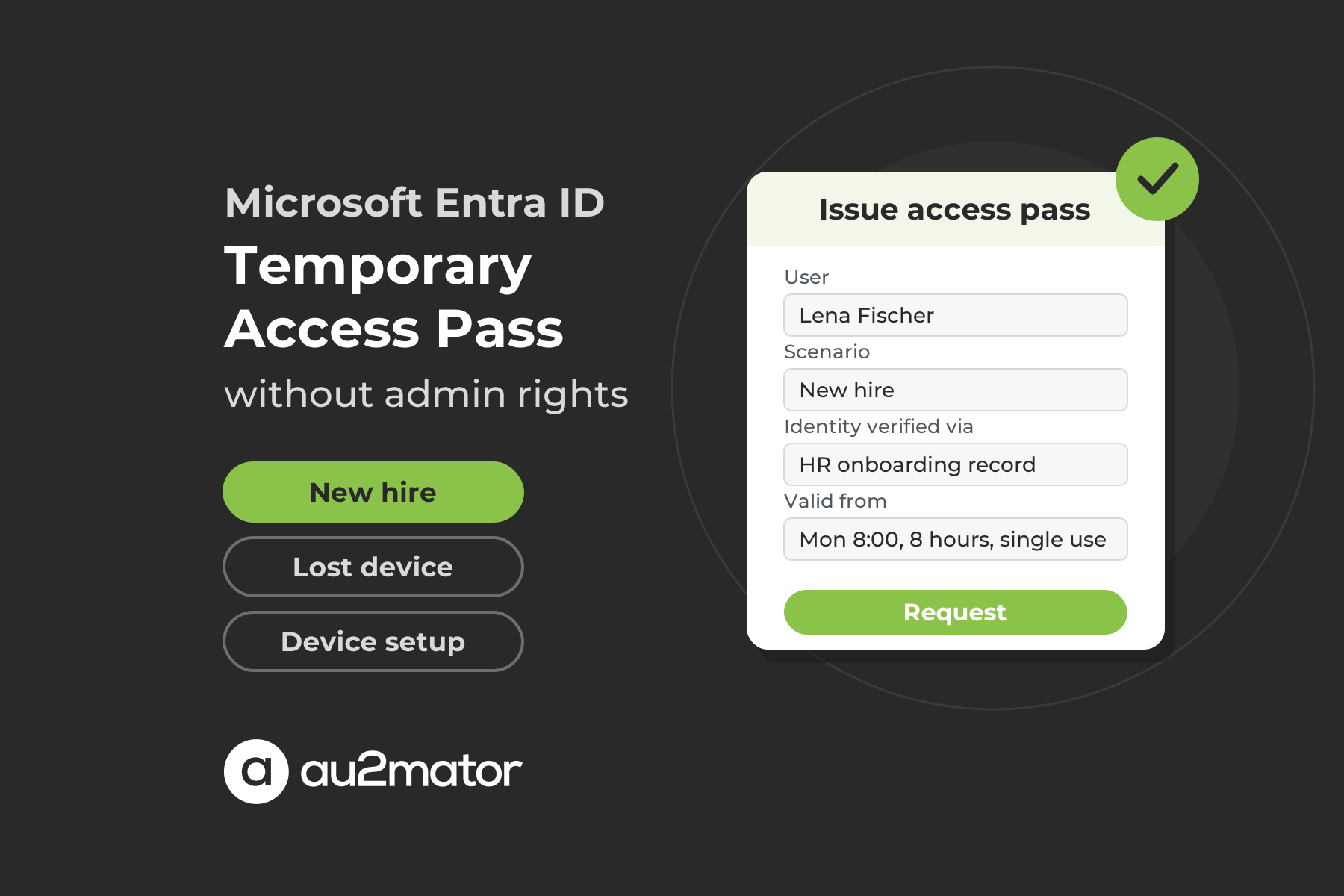
The service is the script above, registered on the engine where it already runs, and you can publish it three times with different defaults, as New hire, Lost device and Device setup. The form exposes only what the requester should decide. Typically that is a user lookup loaded from the directory, a ticket number and a start time for the onboarding case. A required field asks for the verification method, such as the HR record for a new hire or a callback to the manager for a recovery. Required means the request cannot be submitted without it.
Permissions decide who sees which service, so HR sees New hire, the first-level team sees Lost device and the workplace team sees Device setup. The portal decides who may request, not whom the request targets, so give any service you open to managers an approver. Approval is one level per service. The New hire service that HR uses needs none, because the onboarding list is the approval and the script refuses New hire for any account older than 30 days. Lost device and Device setup go to a named approver such as the helpdesk lead, or to an approver group where one member or a defined share of the group has to approve.
For execution, au2mator starts the script through the application programming interface (API) of your engine, and the script signs in with the app registration or managed identity that holds the two permissions. The audit entry keeps requester, approver, form values, timestamps and the script result, including the pass value, which is why access to it should stay narrow. The outcome of a request can be reported back to your ticketing tool, and if you do that, report the status and never the result line.
Try it with your own Temporary Access Pass script. The free au2mator Community Edition includes two services with all features, enough to put the New hire and Lost device requests in front of your helpdesk.
Handing over the pass and the first sign-in
Creation is the easy half. The pass only helps if it reaches the right person and nobody else, and Microsoft’s guide leaves that part to you. A recovery pass is read out on the same verified call that confirmed the identity, never sent to the number or mailbox that just asked for it. An onboarding pass goes to the manager or the HR colleague who meets the new hire in person, with a start time on the first morning so a pass requested on Friday is worthless over the weekend. A device setup pass is handed to the technician who sits in front of the machine. A chat message or a ticket comment is not a channel. It is a place where the credential stays.
Three details decide whether the first sign-in works. With a single-use pass the user has to complete the registration of the new passwordless method within 10 minutes of signing in. A multi-use pass is not bound to that window, because the user can sign in with it again when the registration starts. That is why the script issues one for the Device setup scenario, where the Entra join and the Windows Hello for Business enrollment are two steps.
On a device that is already joined, the user has to authenticate with another method first, so the pass normally helps there only for the Windows Hello part. A pass also works only for internal users and internal guests. An external guest needs one from the home tenant.
After the sign-in, the pass should disappear. A single-use pass does that on its own, a multi-use pass expires at the end of its lifetime, and Remove-MgUserAuthenticationTemporaryAccessPassMethod deletes it early when a technician finishes ahead of time. Expiry does not end sessions that were opened with the pass, as Microsoft notes in the guide. If a recovery pass was handed over under pressure, revoke the user’s sessions once the new method is registered. That takes a second, one-line script and one more application permission, User.RevokeSessions.All, as the MFA reset article shows.
FAQ: Temporary Access Pass in Microsoft Entra ID
A Temporary Access Pass is a time-limited passcode, 8 to 48 characters long and valid between 10 minutes and 30 days, that a user presents instead of a password or a second factor. It is used to onboard passwordless methods such as passkeys, Microsoft Authenticator and Windows Hello for Business, and to recover a user who lost the device holding the second factor. It does not replace the password, and a user can hold only one usable pass at a time.
You need Authentication Administrator for non-administrators and holders of some low-privilege roles, and Privileged Authentication Administrator for all users including administrators. Both are privileged roles that can also reset passwords, delete and disable users and invalidate sessions. Helpdesk Administrator cannot create a pass, and manager-based delegation is not supported natively. A moderator on Microsoft Q&A states that the right follows the role scope, not the reporting line.
The TAP policy sets a default lifetime of one hour and a minimum and a maximum lifetime (one and eight hours by default, each adjustable between 10 minutes and 30 days). Each pass gets a lifetime between that minimum and maximum. A pass is either single use or usable multiple times within its lifetime, and the policy can force single use for the whole tenant. With a single-use pass the user has to finish registering the new method within 10 minutes of the sign-in. A new pass replaces the existing one.
Call New-MgUserAuthenticationTemporaryAccessPassMethod from the Microsoft Graph PowerShell SDK with the user and a body that sets lifetimeInMinutes, isUsableOnce and optionally startDateTime. The passcode is returned once in the TemporaryAccessPass property and never again. An unattended script needs the application permission UserAuthMethod-TAP.ReadWrite.All, or the broader UserAuthenticationMethod.ReadWrite.All, plus User.Read.All for the user lookup, and no Entra role. The same script runs behind an au2mator service on PowerShell, Azure Automation or System Center Orchestrator. Nothing is rewritten for the portal, and only the Connect-MgGraph line depends on the engine.
Not in the admin center, because the action is tied to Authentication Administrator. The alternative is a request layer such as the au2mator Self-Service Portal. The helpdesk agent, HR or the manager picks the service for the scenario and fills in a form with the user and the verification method. An approver confirms if required, which you should require for any service that managers can request. Your own script then runs under its own identity on PowerShell, Azure Automation or System Center Orchestrator. The requester reads the pass in the request result, and au2mator keeps the audit entry.
Usually because the user is not included in the TAP policy under authentication methods. An administrator can create a pass for any user, but only users in scope can sign in with it. Other causes are a pass that has not reached its start time or a single-use pass that was already used. A multi-use pass created before the policy was switched to single use is blocked at sign-in with a User Credential Policy error. An external guest account cannot hold a pass at all. Replication can also delay the prompt by a few minutes.
Conclusion: treat creating and handing over a Temporary Access Pass as one process
Microsoft gives you the pass, the policy, the Graph cmdlet and, for new hires in Governance tenants, a workflow task that emails it to the manager. What it leaves open is who may ask for a pass, how the person was verified, and how the value reaches them without a copy staying in a chat. A privileged role for the whole helpdesk answers none of that. A short script picks the lifetime per scenario, and an identity with two Microsoft Graph permissions runs it on your engine. The au2mator form in front of it makes the verification method a required field, the approval explicit and the audit entry automatic.
If you want to see how new hires, lost phones and new devices could become three self-service requests on one script, book a 30-minute call with Michael Seidl, Microsoft Most Valuable Professional (MVP) and founder of au2mator.